Timesheet (Simple View)
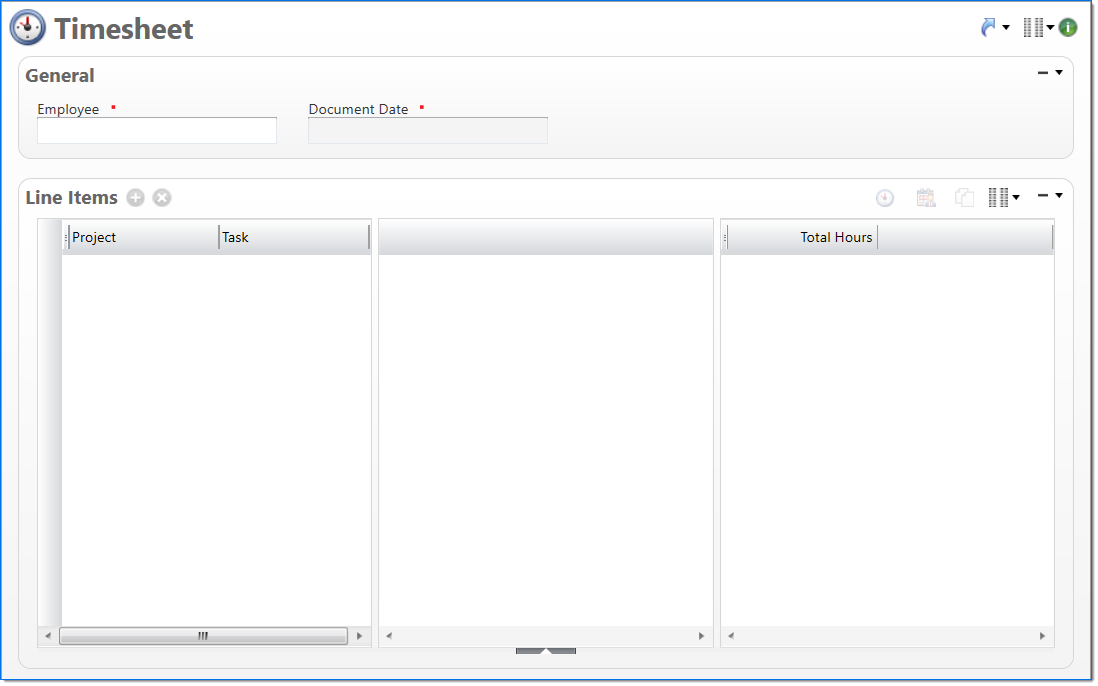
The Timesheet screen in the Simple view allows you to enter and manage the regular time worked on projects for a specific time period. Time is tracked by entering line entries on the timesheet to represent an area of a project, or a level of the project's WBS (work breakdown structure), and then entering the number of hours worked each day on it.
|
See Also: For more information on the other available views for Timesheet, see Timesheet (Default View)and Timesheet (Extended View). |
General
In the General area, general information about the timesheet is displayed.
| Field | Description | |
|---|---|---|

|
Employee |
Displays the employee assigned to this timesheet, normally the current user. This is the person for whom the time is being entered. |
|
|
Document Date |
Displays the document date assigned to this timesheet. This date was assigned when the timesheet was generated and may not be changed. |
Line Items
In the Line Items area, add rows to enter information about the hours that were worked. The area is divided into three main sections, which include project WBS, hours, and totals data.
| Field | Description | |
|---|---|---|
| Load Previous Timesheet |
Click the Load Previous Timesheet
|
|
| Load Employee Assignments Button | Click the Load Employee Assignments  button to populate the line items grid with the current project / task assignments for you or the selected employee. A new line item is added for each project / task combination assigned in Resource Scheduling that does not already exist on the timesheet. button to populate the line items grid with the current project / task assignments for you or the selected employee. A new line item is added for each project / task combination assigned in Resource Scheduling that does not already exist on the timesheet. |
|
| Copy | Click the Copy  button to display the Copy Assistant that allows you to view and select categories and the work breakdown structure of previous timesheets. When the Copy Assistant displays, the Timesheet tab is highlighted. button to display the Copy Assistant that allows you to view and select categories and the work breakdown structure of previous timesheets. When the Copy Assistant displays, the Timesheet tab is highlighted. |
|
| Project WBS |
The Project WBS section allows you to enter lines of project details to use to charge time against on the timesheet. For each line, select a Project, Task, Company, Organization, Labor Bill Class, Activity Type, and an Hours Type. For a detailed description of these fields, see |
|
| Hours |
The Hours section allows you to enter the number of hours you worked on each line entry each day. The displayed dates are based on what has been defined for the selected Document Date. A description can be added to an hours cell once a number of hours has been added. This description is available throughout the lifecycle of a timesheet and in project reporting. When a description is added to an hours field, a red marker is added to the top, right-hand corner of the cell. For more information, see Add and View Time Descriptions. A total of the hours entered per day is displayed on the bottom line of the grid. |
|
| Totals |
The Totals section displays the number of Total Hours for each line item. The totals are updated as you enter information on your timesheet. In addition, a cumulative total of is displayed on the bottom line of the grid. |
|
 button to populate the line items grid with the line items from the employee’s previous timesheet (most recent timesheet prior to the current one, based on Document Date). Copy constraints are:
 WBS Column Descriptions